Using the Companion
This page covers the day-to-day companion web app after the initial connection to immich is already set up.
For install and first-run setup, see Getting Started and Installation.
Connection page
The Connection page stores the shared immich connection used by every profile.
Use it when you need to:
- change the friendly name shown in the UI
- update the immich server URL
- replace the API key
- verify access with Test Connection
If you need to generate or rotate the key, see Immich API Key.
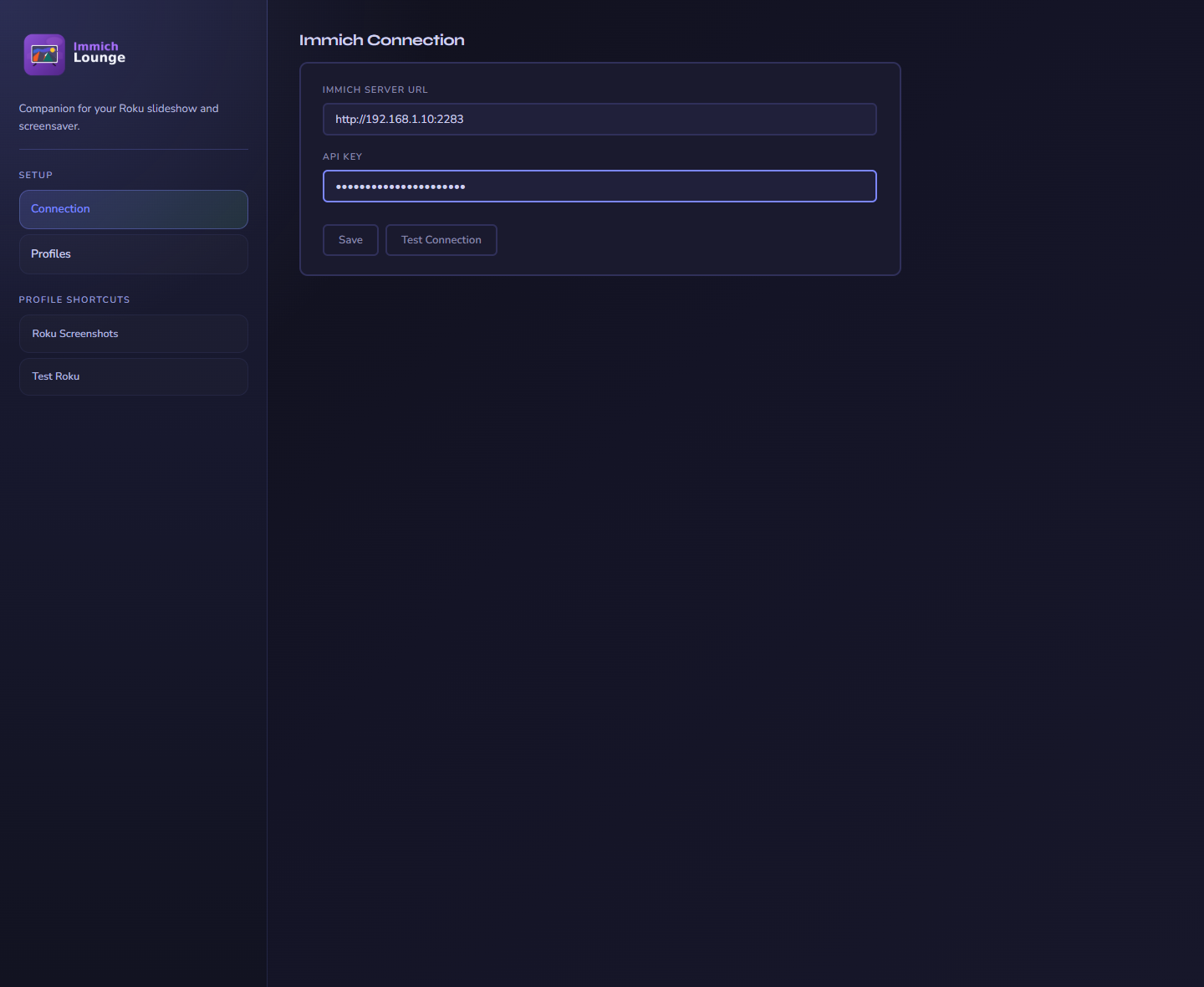
The connection page is the one shared integration point between the companion and immich.
Profiles page
The Profiles page is the main hub for ongoing changes.
Use it when you want to:
- create a new profile for a room, use case, or screensaver
- edit an existing profile
- remove a profile you no longer need
- compare which profiles exist before switching the Roku to a different one
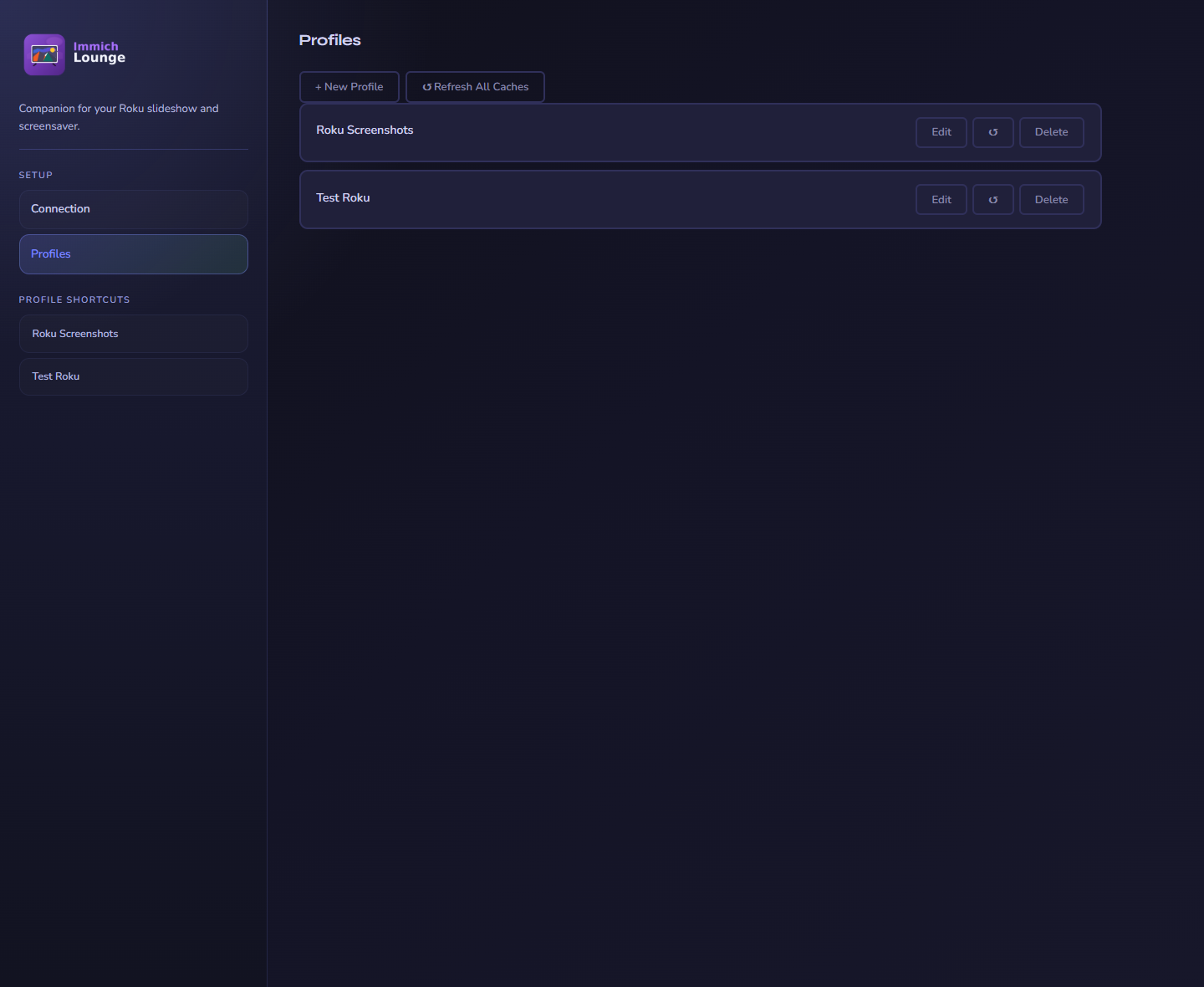
Profiles are where most day-to-day tuning happens after setup is complete.
Profile editor
Each profile controls both what the Roku shows and how playback should feel.
| Area | What you manage there |
|---|---|
| Content | Albums, people, tags, memories, and optional date filters |
| Playback | Interval, shuffle, transitions, photo motion, and refresh timing |
| Display | Overlay style, fields, background effects, date formatting, weather, and image quality |
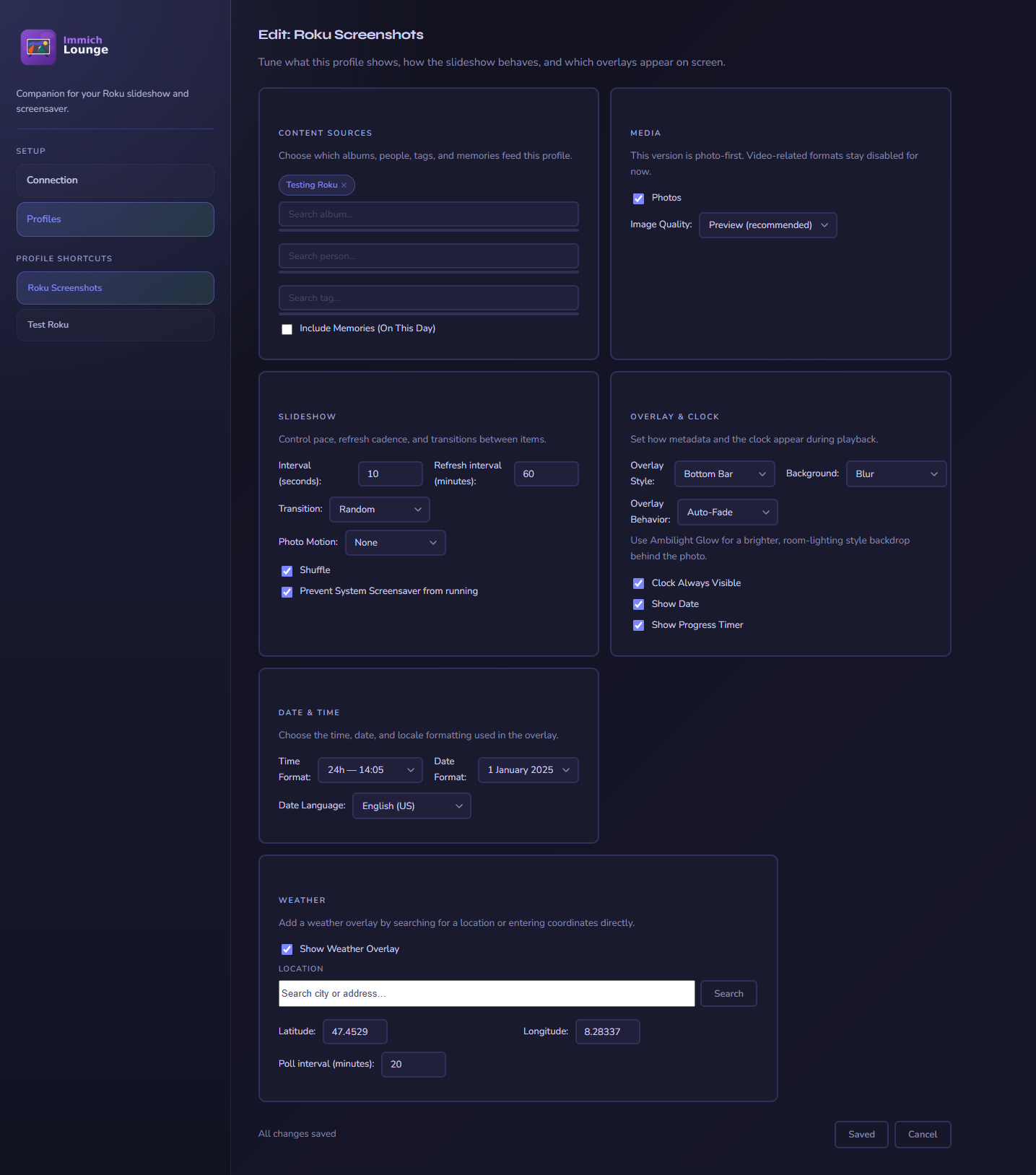
The profile editor combines content selection, playback settings, and visual tuning in one place.
Typical companion tasks
- make one profile for the main channel and another for the screensaver
- keep a simpler profile for weaker Roku hardware or slower networks
- duplicate a working setup by recreating a similar profile with different albums or people
- update the immich API key in one place when it changes
What the companion does not do
- it does not proxy image delivery
- it does not store the API key inside the profile JSON files on disk
- it does not control Roku-side cache clearing or profile switching directly
For Roku playback behavior, remote controls, and the on-device settings menu, see Using the Roku Apps.