Getting Started
This is the fastest path to a first working setup.
For a fuller Docker setup reference, Roku install links, and network notes, see Installation.
You need:
- an immich server on your LAN
- an immich API key
- Docker on a machine that stays on
- a Roku on the same network
1. Start the companion
If you already use Docker Compose for immich, add the companion service from the repo-root docker-compose.yml.
# docker-compose.yml
# Add this service to your existing Immich docker-compose.yml.
services:
  immich-lounge-companion:
    image: ghcr.io/immich-lounge/immich-lounge-companion:latest
    container_name: immich-lounge-companion
    pull_policy: always
    ports:
      - "4383:4383" # change the left side if 4383 is already in use; do NOT expose publicly
    volumes:
      - immich-lounge-data:/data
    environment:
      - ASPNETCORE_URLS=http://+:4383
    restart: unless-stopped

volumes:
  immich-lounge-data:
docker compose up -d
This keeps the companion on port 4383 and persists its /data directory in a Docker volume.
2. Connect the companion to immich
Open:
http://<your-docker-host-ip>:4383
On the Connection page, enter:
- a friendly name
- your immich server URL, for example
http://192.168.1.10:2283 - an API key from immich
Do not use localhost, 127.0.0.1, or other loopback-only addresses here. The Roku also needs to reach that immich URL directly.
Then click Test Connection and save.
If you have not created the key yet, see Immich API Key.
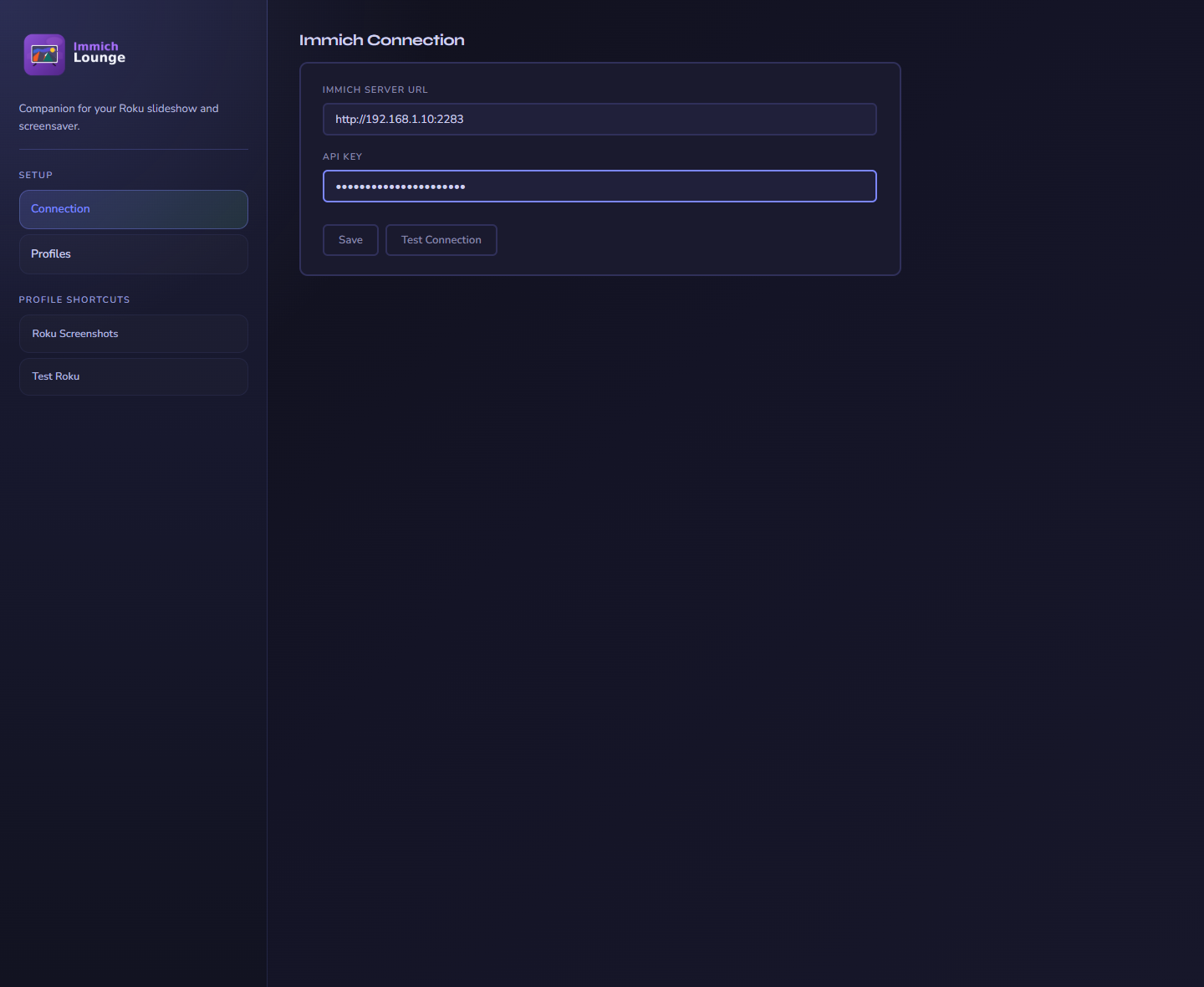
Connect the companion to immich first. The Roku setup comes later.
3. Create a profile
A profile decides what the Roku shows and how it should look.
Pick one or more content sources, then save the profile. The companion starts building the playlist in the background.
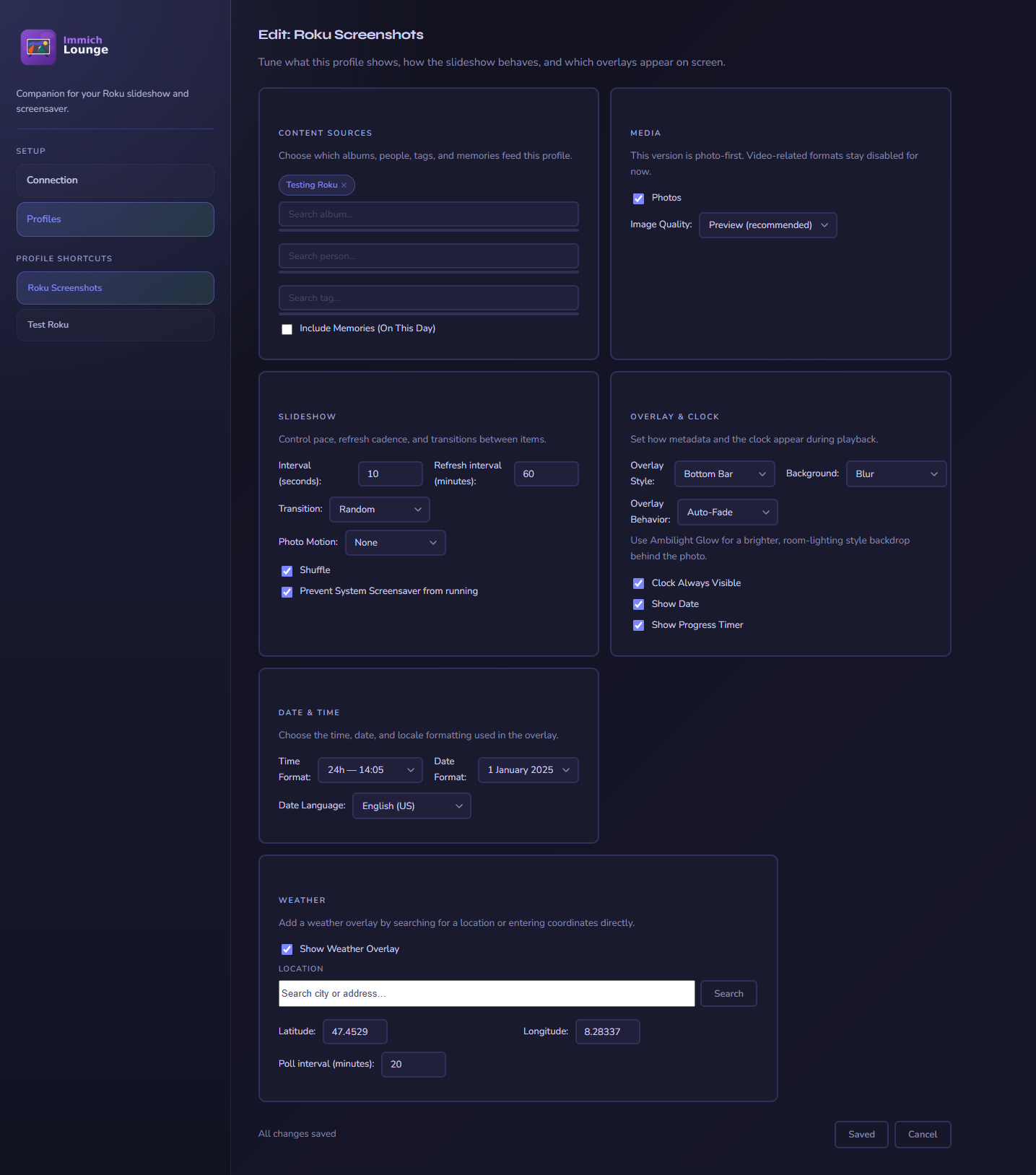
A profile controls content, slideshow behavior, overlays, and weather.
4. Connect the Roku
Launch Immich Lounge on Roku, enter the companion URL, and choose a profile.
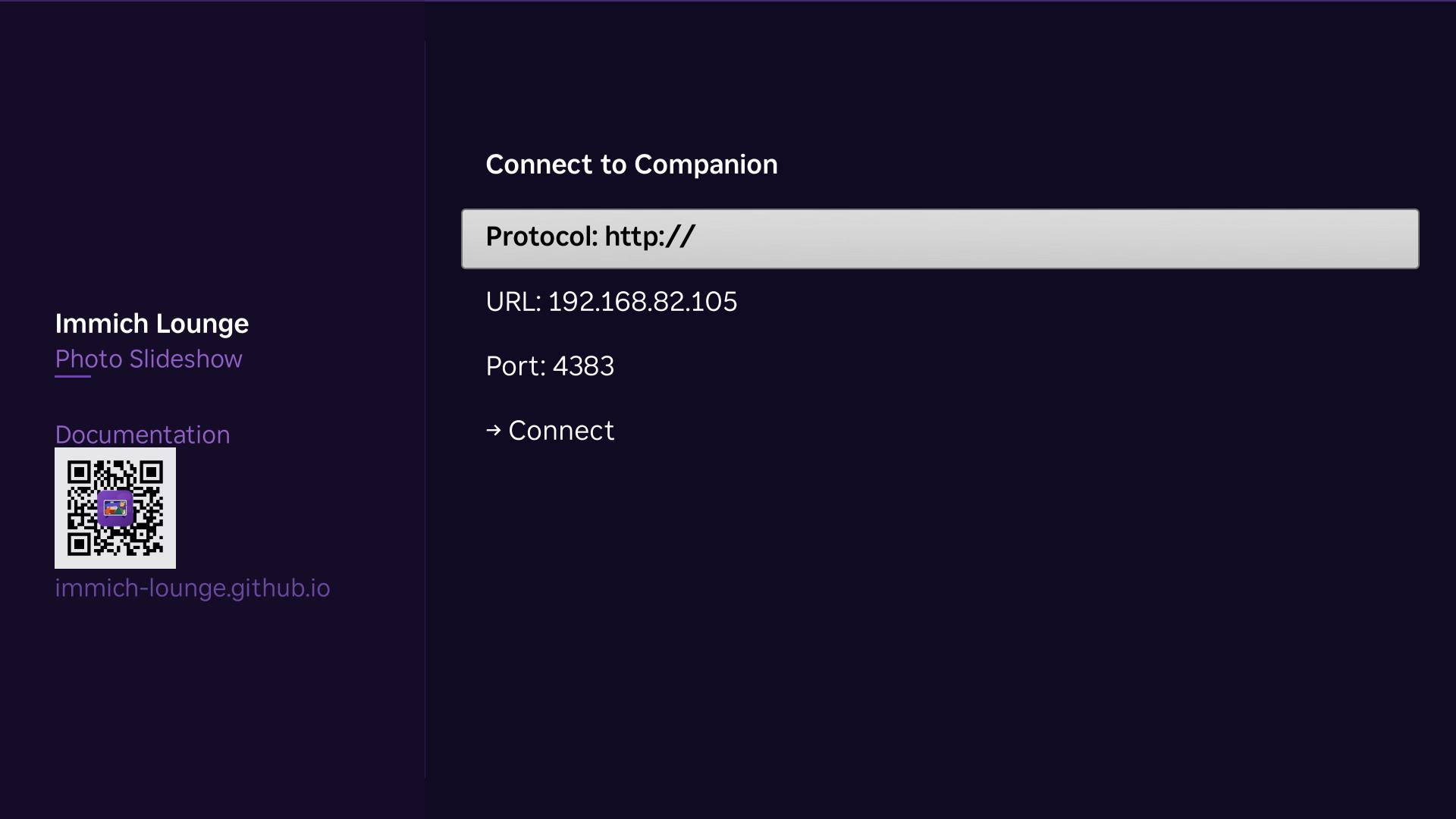
Enter the companion host and keep the default port 4383.
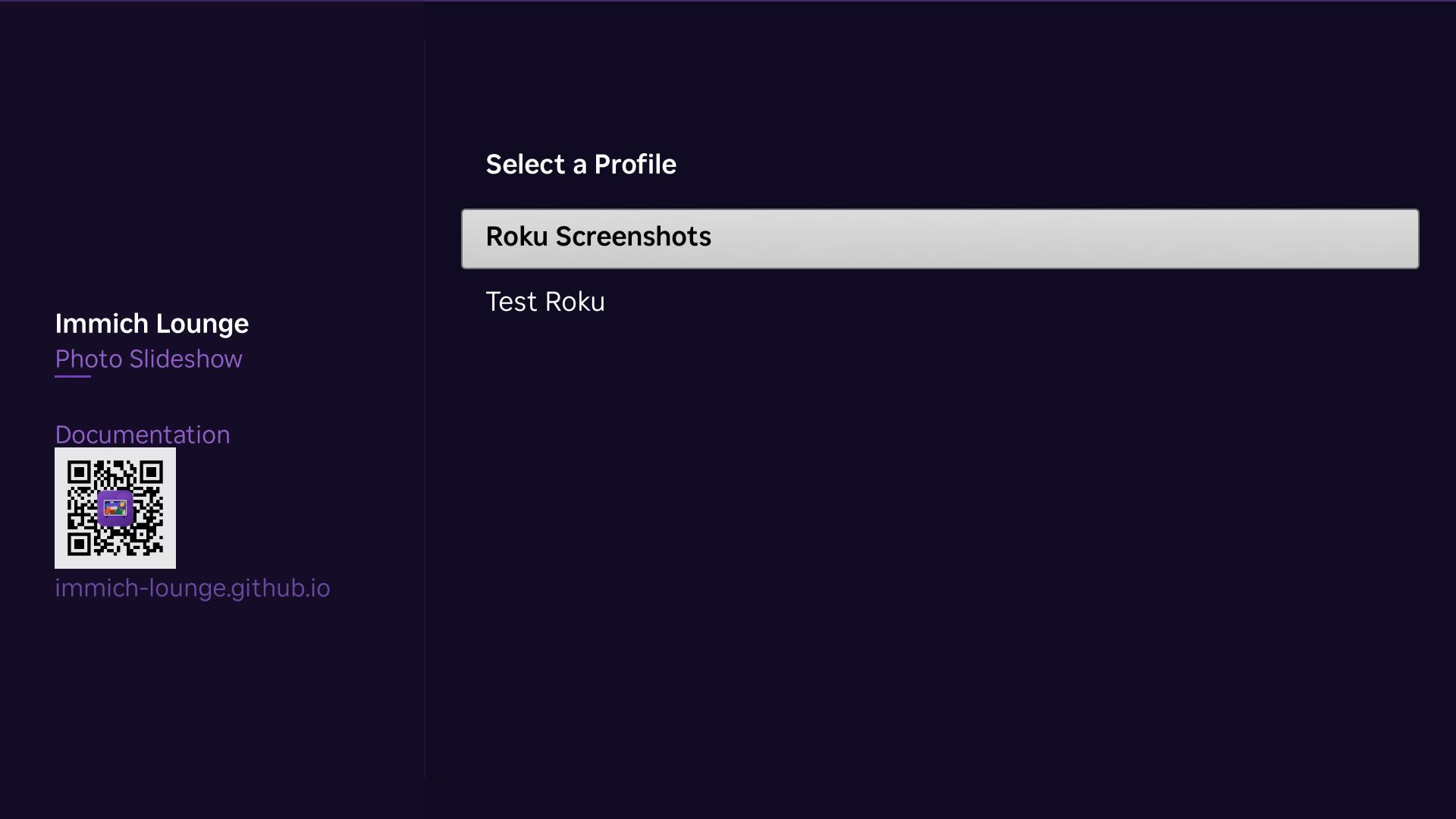
After the Roku reaches the companion, choose the profile you want to use for this device.
If you also want the Roku screensaver, go to Settings -> Theme -> Screensavers, switch to Immich Lounge Screensaver, then open Configure Screensaver. The full step-by-step flow is in Using the Roku Apps and Roku's own help article is here.
API key notes
See Immich API Key for the current immich steps to generate a key and the recommended permission set.
Immich Lounge does not create, update, or delete your immich library content.
Next steps
- Use Configuration to understand the available profile and connection settings.
- Use Using the Companion for the day-to-day companion pages after setup.
- Use Using the Roku Apps for the channel controls, Roku settings menu, and screensaver behavior after setup.