Using the Roku Apps
This page covers the day-to-day Roku experience after the companion and profiles are already set up.
For companion setup and profile editing, see Getting Started, Configuration, and Using the Companion.
Channel vs Screensaver
The Roku channel is used for setup, profile selection, and normal playback.
The Roku screensaver uses the same companion connection, but it behaves a little differently:
- It does not show the discovery or manual setup flow.
- If no screensaver profile is selected yet, it falls back to the channel profile.
- If no profile is configured at all, it shows a setup reminder and exits.
- If the companion is rebuilding a playlist and a cached playlist exists, the screensaver uses the cached playlist immediately.
First-Run Flow
- Open Immich Lounge on your Roku.
- Enter the companion host and keep port
4383. - Select the profile you want for the channel.
- Start playback and confirm the slideshow is working.
- If you also want the screensaver, go to
Settings->Theme->Screensaversand switch the active screensaver to Immich Lounge Screensaver. - After it is selected, open Configure Screensaver to choose the companion and profile for screensaver mode.
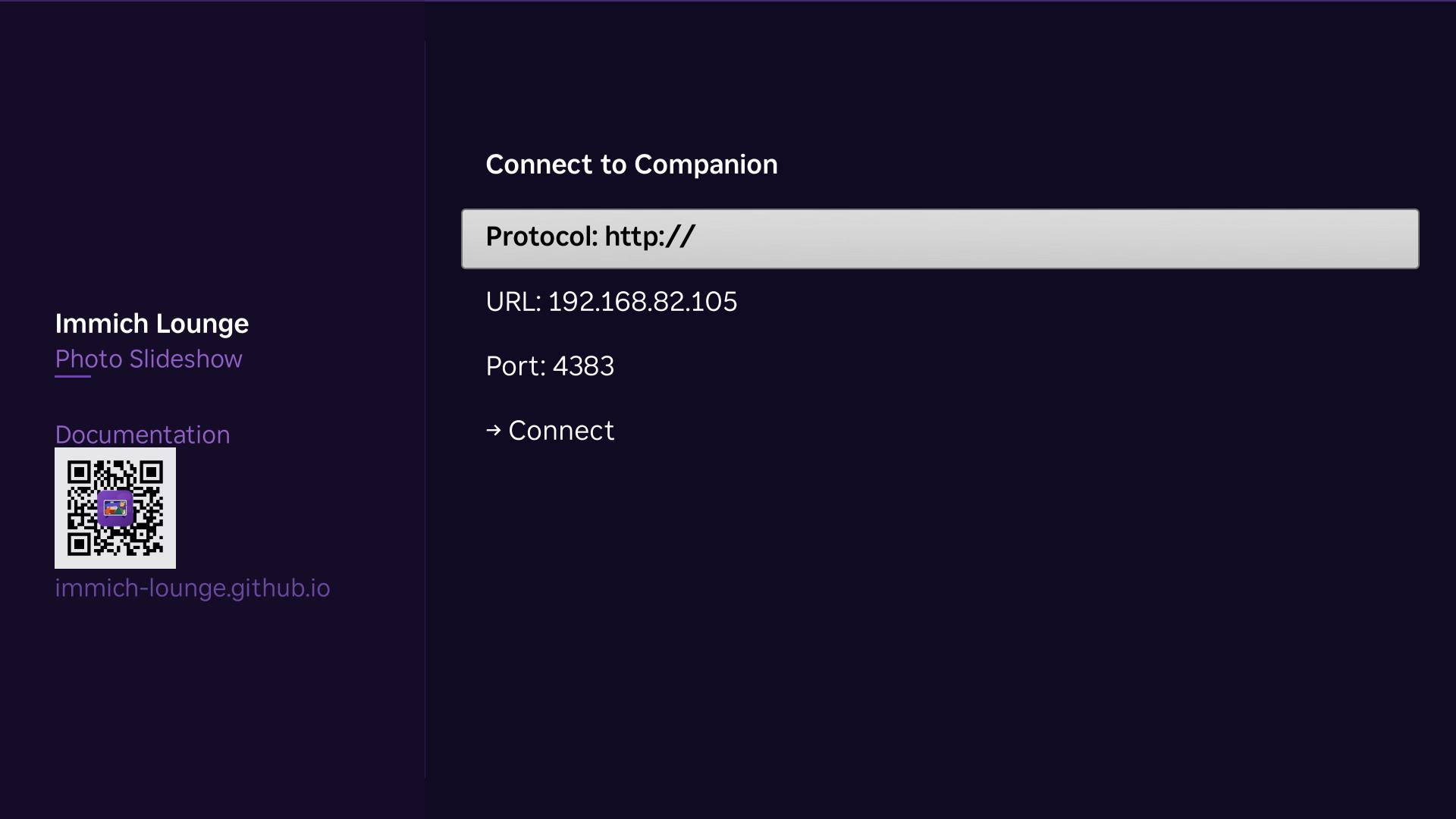
Connect the Roku to the companion with the host address and default port 4383.
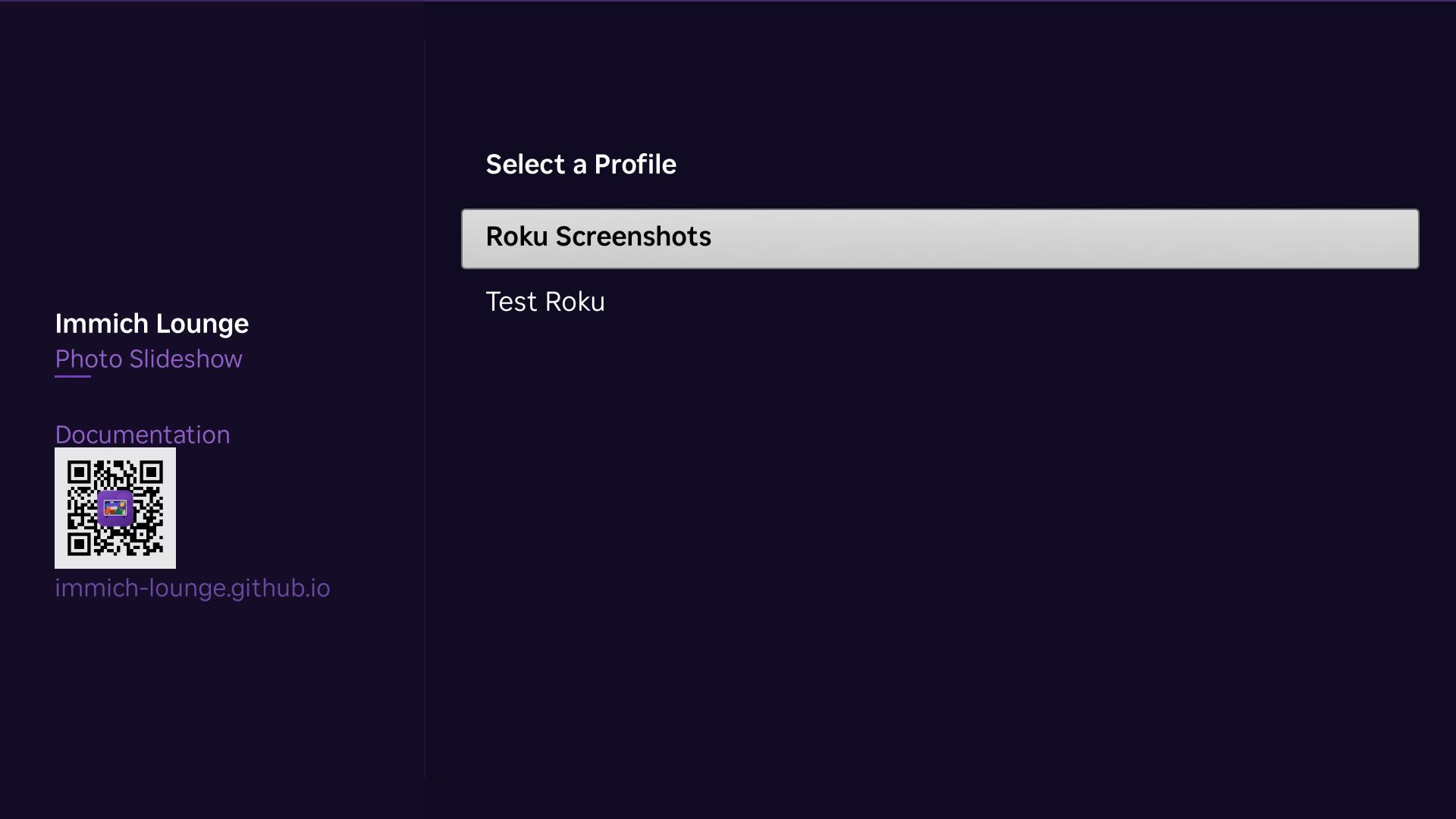
Choose the Roku profile after the companion returns the available list.
Change the Roku Screensaver
Use Roku system settings to change which screensaver the device runs:
- Go back to the Roku home screen.
- Open Settings.
- Open Theme, then Screensavers.
- Set the active screensaver to Immich Lounge Screensaver.
- Open Configure Screensaver.
- Confirm the companion URL, then choose the profile you want the screensaver to use.
Roku's support article for changing screensavers is here: How to change the screensaver on your Roku streaming device.
If Immich Lounge Screensaver is already selected, you only need Configure Screensaver to switch it to a different companion or profile.
Remote Controls
In channel mode:
| Button | Action |
|---|---|
Left |
Previous photo |
Right |
Next photo |
OK |
Show or hide the overlay |
Up |
Show the overlay |
Down |
Hide the overlay |
Play/Pause |
Pause or resume playback |
* |
Open the settings menu |
Back |
Open the exit dialog |
In screensaver mode, Roku handles key presses at the system level and the screensaver exits instead of opening app controls.
Roku Settings Menu
Press * during playback in the channel to open the settings dialog.
| Action | What it does |
|---|---|
Refresh Now |
Re-fetches the current profile and playlist immediately. |
Change Profile |
Keeps the companion URL but lets you pick a different profile for channel mode. |
Change Companion |
Switches the Roku to a different companion host. |
Clear Cache |
Removes cached profile and playlist data for the current mode. |
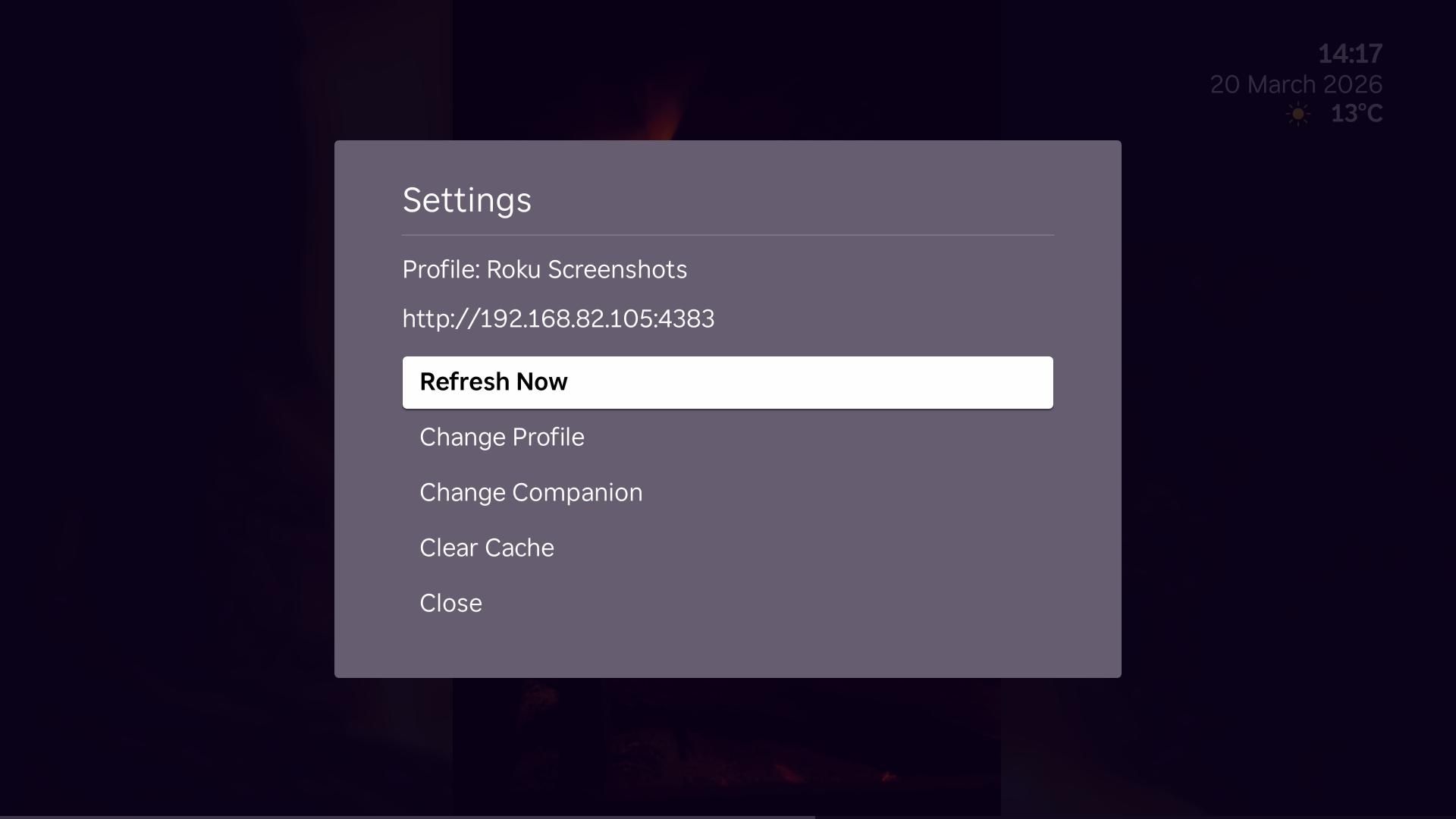
The Roku settings dialog is available from the * button during channel playback.
Typical Setup Patterns
- Use one profile for the channel and another for the screensaver if you want different rooms or moods.
- Use the channel for setup and troubleshooting, even if your main goal is the screensaver.
- If the companion host changes, use Change Companion from the Roku settings menu instead of reinstalling the apps.
When to use the channel for troubleshooting
Prefer the normal channel when you need to:
- confirm the companion URL
- switch profiles
- force a refresh
- clear cached state
The screensaver is best treated as playback-only once it is configured.